

What's new in adoc Studio 5 for AsciiDoc writers
Published on September 15, 2026
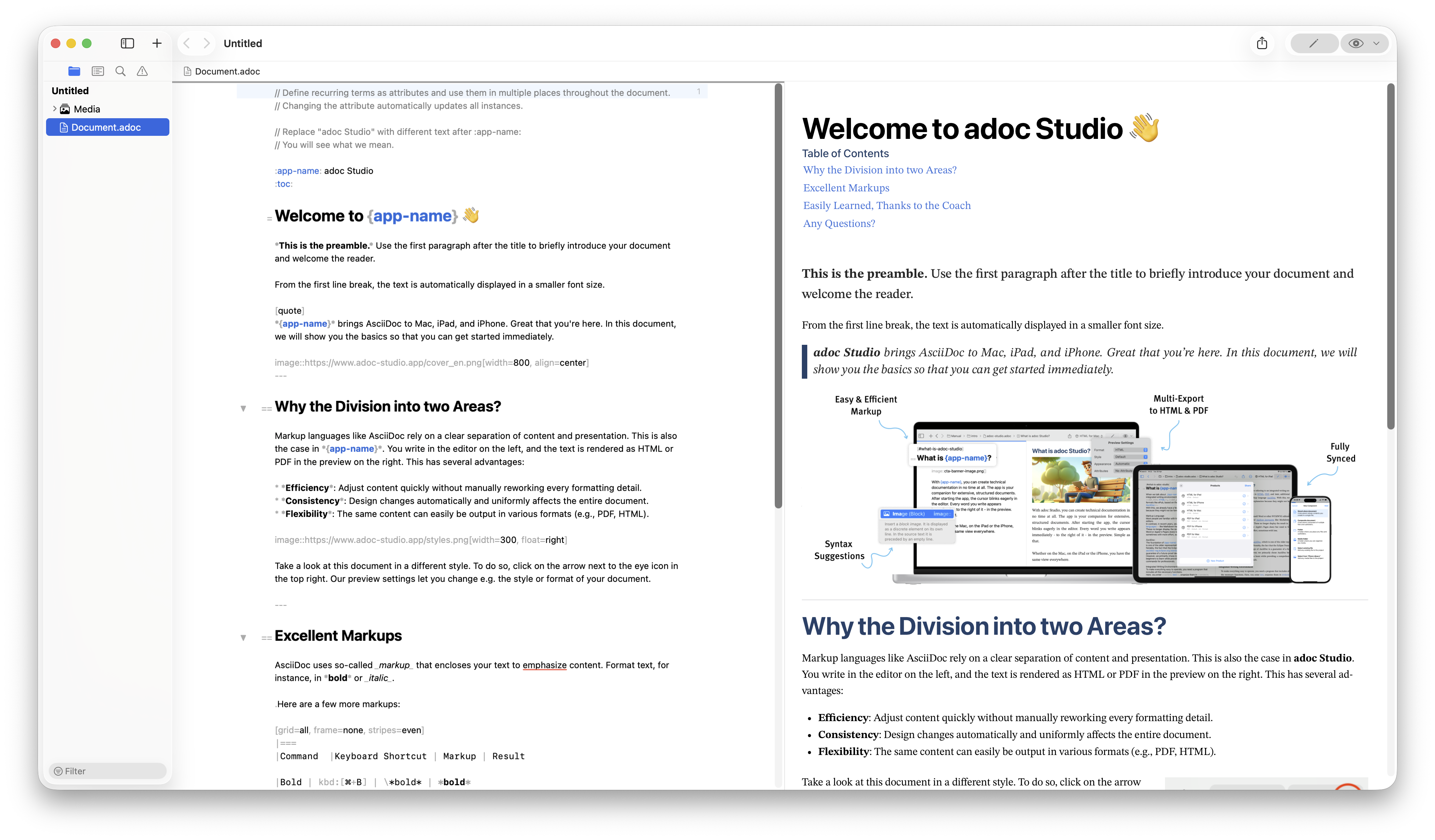
There aren’t many desktop tools for technical writing that are native to macOS and iPadOS. Plenty of cross-platform options exist, but they don’t feel the same. I mean fully Mac first, built around Apple’s APIs and OS updates.
One tool I know of, and have covered before, is adoc Studio. It’s built around AsciiDoc, and getting AsciiDoc out into other publishable formats. The team has been working hard since I last looked at it, so I went through what’s new in versions 4 and 5. That includes PDF export with accessibility tools, HTML and site export, multilingual support, and AI features.
Working with includes and language variants
I opened a fairly complex document, the help content for adoc Studio itself, to see the rendering options. HTML for Mac and PDF both work as expected.
adoc Studio supports the standard AsciiDoc include directives. In the English file, an include pulls in content from a file called moredetails.adoc. Switch to the German file, and it references a file with the same name, just written in German. adoc Studio picks up the correct language version automatically.
Typing an include command triggers autocomplete, so you can pick the target file directly. You can also include only part of a file using standard AsciiDoc line-range syntax, for example the first eight lines instead of the whole document.
AI-powered translation
One new feature uses whichever AI provider you’ve set in the app’s preferences to create new translations of content. I had English and German versions of a document, and added French by translating from the existing English file.
The process runs in the background with a status update, so you can leave it and come back. Translating a couple of thousand words through OpenAI cost 5 cents and used about 75,500 tokens. I can’t vouch for translation quality, but the cost is low.
adoc Studio supports ChatGPT, Claude, and Gemini. You can also pick a different model. For translation, a smaller model is probably fine. Heavier tasks might need something more capable.
Exporting
adoc Studio calls its export process “producing,” and there’s a wide range of output options: HTML for different devices, PDF for different devices, and full website export with its own style.
The website export gives you a lot of control over navigation, including which heading levels appear in the table of contents, automatic search, and top bar navigation. You can also choose which source content and languages to include, in case you don’t want every language available in every output.
For PDF, the options are similar but without navigation. You can pick a format, style, and appearance.
One detail worth noting, the “device” setting here refers to the platform adoc Studio itself runs on (iPad, iPhone, or Mac), not the target format of the exported PDF. The app doesn’t generate different PDFs per device, though you could set that up yourself.
Customising output with CSS
You can adjust the CSS that controls how exported content renders. In the settings, under product style, you can duplicate an existing style and edit the resulting stylesheet directly if you know CSS.
I found the section for admonition colours and changed them to something deliberately garish, just to prove the change worked. After saving, the preview updated immediately. Once you’ve built a style you like, it applies automatically to future exports and any future changes.
When I ran a full export (HTML, PDF for Mac, and website), it initially failed. adoc Studio runs a pre-flight check before generating PDFs, similar to what I remember from InDesign and QuarkXPress. It flagged missing attributes and placeholders. I ignored the warnings and re-exported.
The results looked solid, an English PDF with working hyperlinks and a proper table of contents, a matching German version, and a website export that closely mirrored the in-app help.
Other useful features
adoc Studio also offers plain translation and rewriting through the same AI provider, similar to macOS’s built-in tools but tuned to AsciiDoc syntax. It correctly ignored attributes and variables in the text rather than trying to work with them.
There’s now also a command line interface. Right now it supports one command, exporting a project with its default settings, with more likely on the way. This matters for people scripting their documentation pipeline, and increasingly for AI agents that need to run the same export without a GUI.
For PDF export, adoc Studio added support for confirming the universal accessibility standard, which is especially important for anyone producing PDFs for distribution in the European Union. Adding one attribute at the top of a document is enough to enable it.
Pricing and plans
adoc Studio has three tiers. Community is free and covers core editing, AsciiDoc syntax support, and HTML export. Pro adds PDF and website export, custom CSS styling, multilingual projects, AI translation and writing assistance, CLI export automation, and accessible PDF export. Enterprise adds volume licensing, direct purchase outside the App Store, and dedicated support.
Pro costs $24.99 a month, or $249.99 a year if you pay annually. Enterprise pricing is custom. All plans include a 14-day trial and cover up to five devices.
Should you try it
If you’re a solo technical writer working in AsciiDoc on a Mac or iPad, the free Community tier alone might cover what you need. If you need multilingual output, AI translation, or CLI automation, Pro is reasonably priced compared to other enterprise writing tools. There aren’t many alternatives built specifically for macOS and iOS, and that alone makes adoc Studio worth a look.
If you like what you're reading, support my work
Keychron makes some of the best mechanical keyboards around, wired or wireless, for Mac and Windows.
Shop Keychron